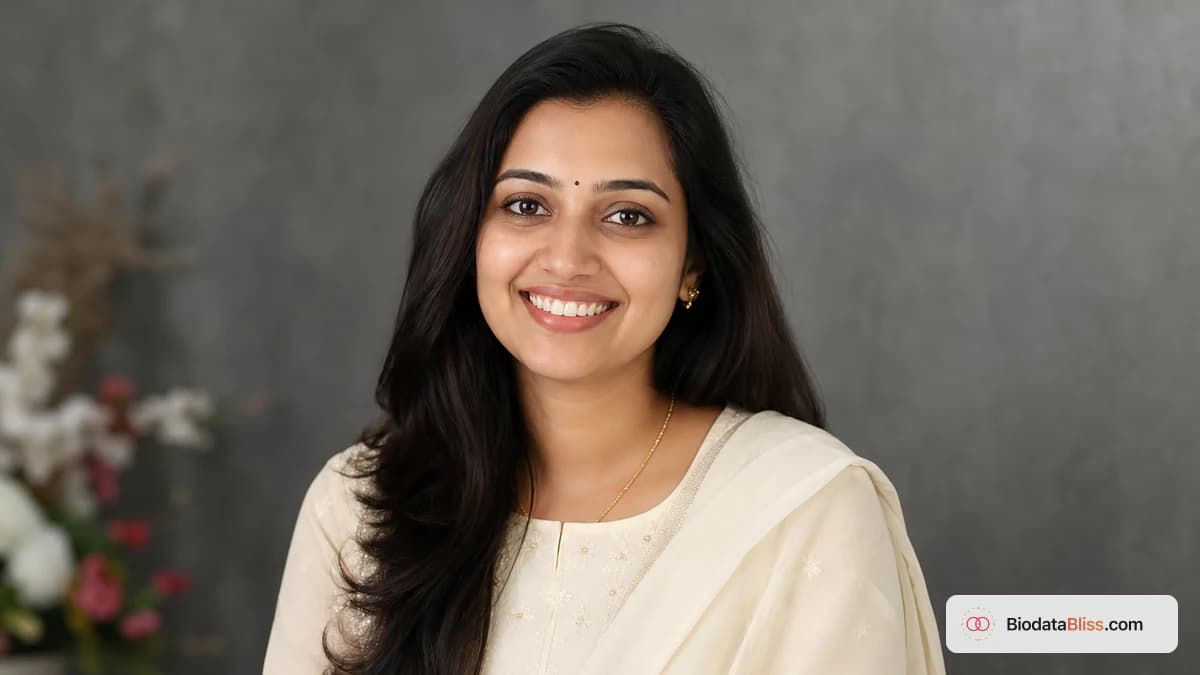
Before families read your degree or job title, they look at your photo. A clear, recent portrait creates confidence in seconds; a blurry or overly edited image quietly delays good conversations.
If your biodata is being shared on WhatsApp, your photo is doing more work than you think. It is the first trust signal for parents, relatives, and family coordinators who may see your biodata on a small phone screen. The good news: you do not need a studio shoot or expensive editing. You only need a recent, honest portrait with the right size, lighting, and crop. This guide breaks down exactly what families expect: ideal dimensions, safe dress choices, clean backgrounds, and how to crop perfectly for BiodataBliss templates. Use this once, and your photo will look strong in both digital sharing and printed copies.
Why your biodata photo matters more than most people admit
In arranged-marriage introductions, elders often decide whether to continue within the first few seconds. They may skim text later, but they see your face immediately.
A good biodata photo does not mean glamorous. It means trustworthy: clear eyes, natural expression, respectful outfit, and a setting that does not distract from you.
- First impression is visual before it is textual
- A clean portrait signals seriousness and sincerity
- A confusing photo creates doubt even with strong credentials
- Relatives forward photos quickly, so clarity must survive compression
- Consistency with your video-call appearance builds trust
Best photo size, resolution, and format for biodata PDFs
You do not need DSLR quality, but you do need enough pixels so your face stays sharp after WhatsApp forwarding and PDF generation.
Start with the highest-quality original photo from your phone gallery, not a screenshot. Screenshots of already compressed images look soft and grainy in templates.
- Minimum practical source: around 800 x 800 pixels
- Recommended upload range: 1200 x 1200 to 2000 x 2000 pixels
- Use JPG for normal photos; PNG only when JPG quality looks damaged
- Square or near-square source images crop best in most templates
- Keep source file size reasonable (typically under 2 MB) for easier editing
If you only have a vertical photo, crop to head-and-shoulders before finalizing. If your face appears tiny on mobile, the image is not ready.
Dress code families usually respond well to
The safest rule is simple: dress as you would for a respectful first family meeting, not a party album or vacation reel.
Traditional wear and clean formal wear both work well. Loud prints, flashy logos, and overly casual outfits usually weaken the overall impression.
- Women: saree, salwar-kameez, kurta, or simple formal wear
- Men: formal shirt, kurta, or blazer with clean neckline
- Prefer solid colors or soft patterns over busy prints
- Avoid sunglasses, caps, and heavy beauty filters
- Keep styling close to your everyday real-life look
Background and lighting rules that instantly improve photos
Most biodata photos fail because of poor light, not poor looks. Backlit windows, yellow tube lights, and cluttered rooms make portraits appear unpolished.
You can get an excellent result at home using a plain wall and soft front-facing light.
- Use a plain wall, curtain, or clean softly blurred background
- Keep light in front of your face, not behind you
- Natural window light in morning/evening works very well
- Avoid harsh top lighting that creates eye shadows
- No other people, pets, or distracting objects in frame
How to crop your biodata photo correctly
Cropping is where even good photos go wrong. If your face is too small, families must zoom and still cannot see expressions. If the crop is too tight, it feels awkward in ornate frames.
A balanced head-and-shoulders crop usually works best across modern and traditional templates.
- Keep eyes near the upper third of the crop frame
- Leave small space above hairline
- Avoid cutting chin, ears, or forehead edges
- Center your face for cleaner template alignment
- Check crop in both modern and traditional preview styles
On BiodataBliss, you can re-crop anytime before checkout without losing your form details.
Common photo mistakes that silently reduce responses
Most low-response biodatas are not rejected because of text. They are ignored because the photo feels old, unclear, or too edited.
These mistakes are easy to fix before your PDF is forwarded.
- Old photo that no longer matches your current appearance
- Group image awkwardly cropped into a solo portrait
- Heavy skin smoothing or AI-filtered face
- Mirror selfies with visible clutter
- Low-light or blurry image with weak detail
- Portal watermark across the face area
Quick photo setup guide for parents and siblings
If family members are helping, a 10-minute setup can save days of awkward follow-up explanations later.
Take multiple shots, then choose the one that looks calm and natural, not dramatic.
- Clean phone lens before shooting
- Use rear camera, not front selfie camera
- Take 15-20 shots with small expression changes
- Choose one final photo together before uploading
- Test readability at normal WhatsApp zoom
Step-by-step: upload and preview on BiodataBliss
You can complete the full flow in minutes. The key is to fill profile text first, then finalize photo crop in preview mode.
- 1. Open biodatabliss.com and start Create Biodata
- 2. Fill Basics, Family, and Contact accurately
- 3. Upload your best recent portrait in Photo step
- 4. Adjust crop to balanced head-and-shoulders
- 5. Switch templates and compare photo fit
- 6. Re-crop if needed, then continue
- 7. Download PDF and share the file, not screenshot
Final pre-share checklist before relatives forward your biodata
Ask one parent or sibling to review only the photo first. If they hesitate for even a second, improve it before sharing broadly.
- Photo is recent and matches your current look
- Face remains sharp on phone screen
- Outfit is modest and introduction-friendly
- Background is clean and distraction-free
- Crop looks balanced in template preview
- Final shared file is clean PDF, not watermarked capture
Final tip
A great marriage biodata photo is simple: recent, clear, respectful, and easy to trust on a small phone screen. Nail your lighting and crop once, preview on mobile, and share a PDF that feels honest from the first glance.
Start on Create Biodata, then compare designs on Templates before checkout.
Ready to add your portrait? Upload, crop in the guided form, preview your template, and download when the photo looks clear on phone.
Create Biodatahttps://biodatabliss.com/create-biodata (opens in a new tab)