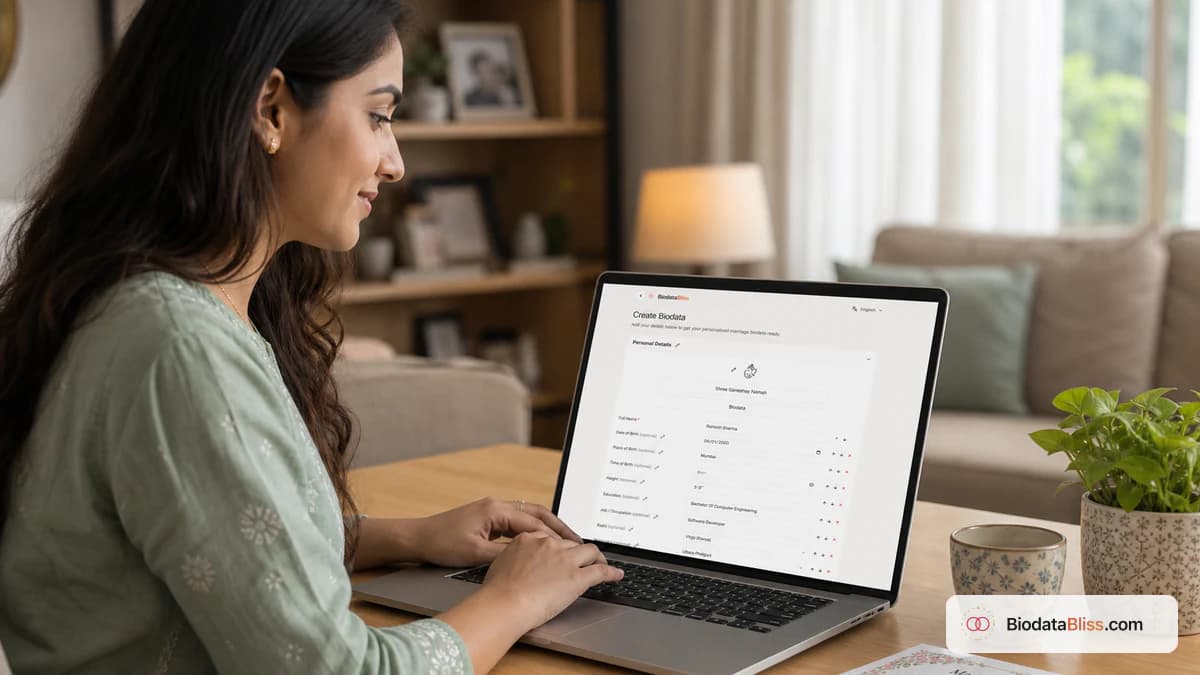
Most family marriage chats still start the same way: someone opens your marriage biodata PDF on WhatsApp. This refreshed guide shows how to create biodata for marriage online—free to start—and finish a clean PDF in minutes on BiodataBliss.
If you are searching how to create biodata for marriage or how to make biodata for marriage without wrestling with Word, you are in the right place. Create marriage biodata online on BiodataBliss: guided Basics → Family → Contact → Photo, live template preview, then a free marriage biodata PDF path you can share on WhatsApp. Labels below match the app so parents can follow along.
Step 1: Open BiodataBliss and start Create Biodata
In your browser, open the BiodataBliss home page: https://biodatabliss.com (opens in a new tab) Bookmark it if elders will edit over a few evenings.
On the home page, tap the main CTA labeled Create Biodata (opens in a new tab) to land on /create-biodata. That is the fastest way to create marriage biodata online—no blank Word page, no broken formatting later.
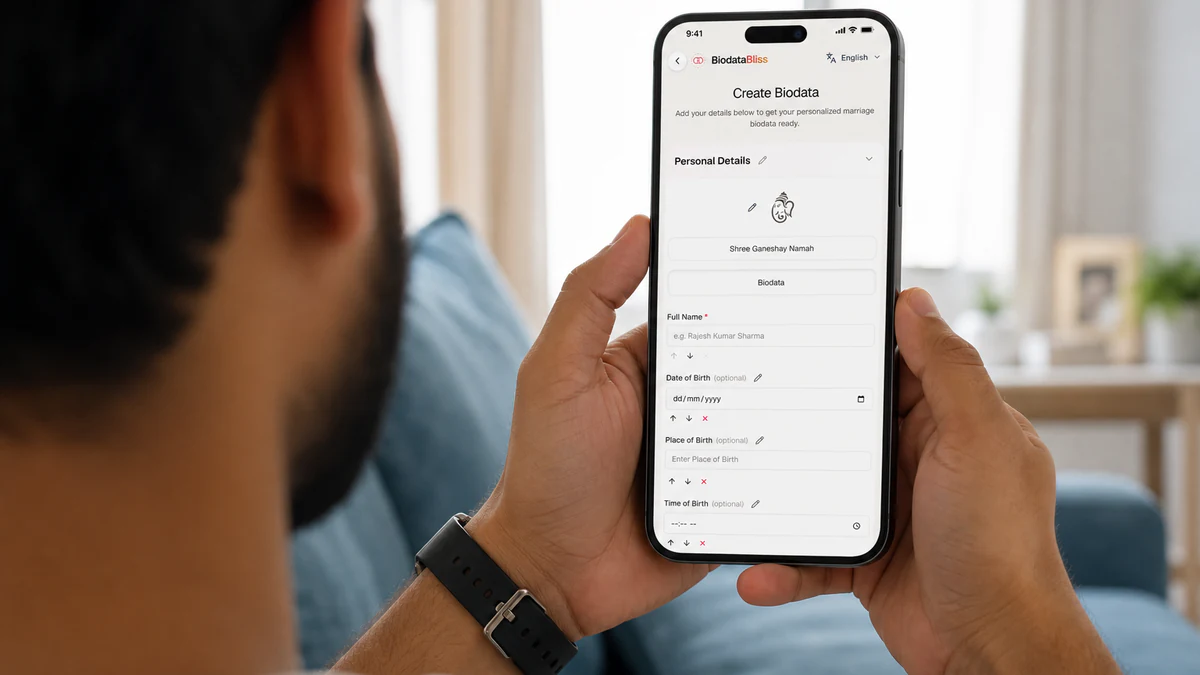
Step 2: Fill Basics, Family, Contact, and Photo
You should now be on the create page: https://biodatabliss.com/create-biodata (opens in a new tab) Pause before typing. One careful pass beats three rushed WhatsApp drafts.
Create your marriage biodata That heading confirms you are in the guided flow. Complete each step so your marriage biodata stays balanced.
Under the hero you will see: Start with a free template or choose a premium design anytime.. It sets expectations for this free-start flow.
- Biodata header Set a clean heading and subtitle that match your family tone. Clarity beats decoration when someone skims on a phone.
- The strip follows Basics, Family, Contact, and Photo. Use “Previous” and “Next” without losing entries. Get Full Name right first—families notice name formatting immediately.
- A progress cue such as Progress to preview: 50% keeps marriage biodata in minutes feeling manageable. You can leave optional fields blank and still continue.
- Need depth? Expand + Add more personal details (horoscope, religion, hobbies…), + Add siblings & property (optional), and + Add email, address & more (optional) only where useful (horoscope, siblings, address). Use Hide optional fields to keep the form skimmable.
- Section cards keep fields tidy. Add rows, rename labels, or use + Add new section for a custom block your community expects.
- Photo Upload Portrait is optional; if you add one, keep it recent and natural. On-screen help reads Add a portrait for your biodata preview (optional). This is separate from the small header icon..
After a quick typo check, tap Choose Template & Download. The button text is “Choose Template & Download” and moves you to template preview.
Step 3: Preview templates, customize, and pay securely
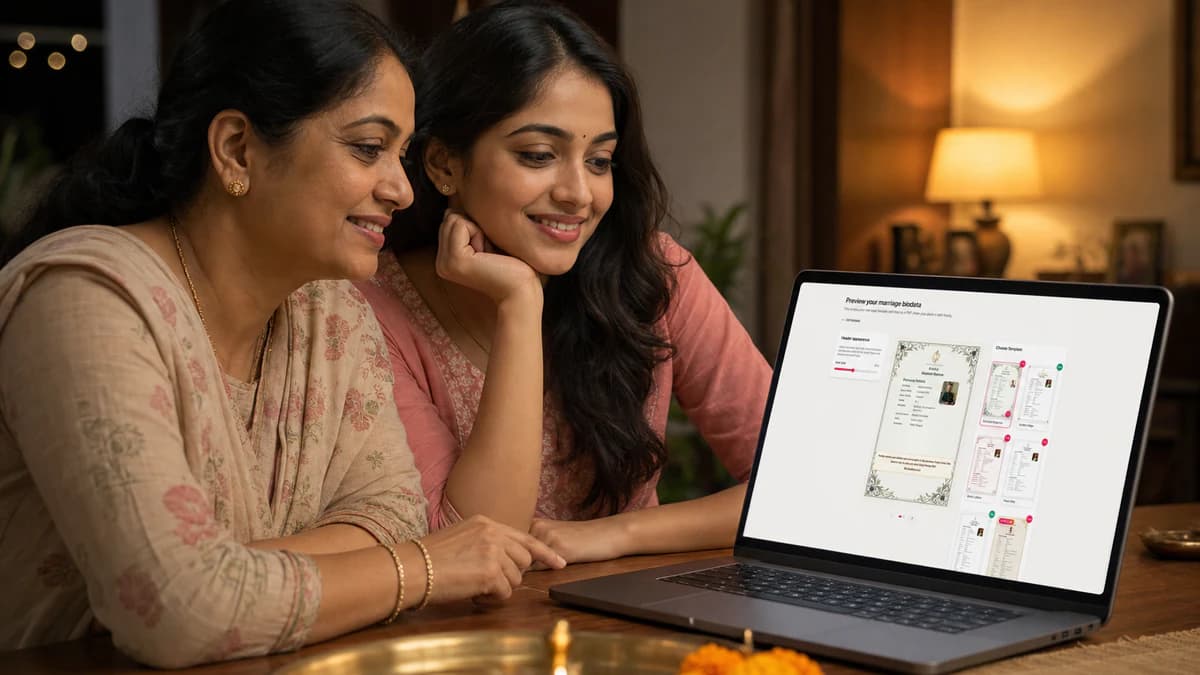
After submit you reach preview: https://biodatabliss.com/preview-biodata (opens in a new tab) This is where your draft becomes a polished, share-ready layout.
Preview your marriage biodata That title confirms you are choosing the final look before download.
- Compare templates with your real text visible—readability beats decoration. Checkout uses Razorpay when enabled.
- Open “Customize” for fonts and colours so elders can read education and family lines easily.
- A “Preview” mark may appear in preview only; it does not print on your paid PDF.
- Open “Review & pay” to confirm price, coupon, and email before you pay.
When ready, continue with Get Premium PDF. “Get Premium PDF” opens Razorpay (UPI, card, or netbanking where available).
Returning after payment may show “Download Biodata”. First purchase stays “Get Premium PDF” → Razorpay → success.
Step 4: Download and share your marriage biodata PDF
After payment confirmation you land on the success screen. The URL includes your Razorpay order id, so it looks unique each time.
Example success URL shape
https://biodatabliss.com/payment/success?order_id=…
You can revisit the success entry any time. Without a valid order id, you may see a short message instead of download actions. https://biodatabliss.com/payment/success (opens in a new tab)
Payment successful 🎉 You will see confirmation, then “Your biodata is ready to download”, then quick actions.
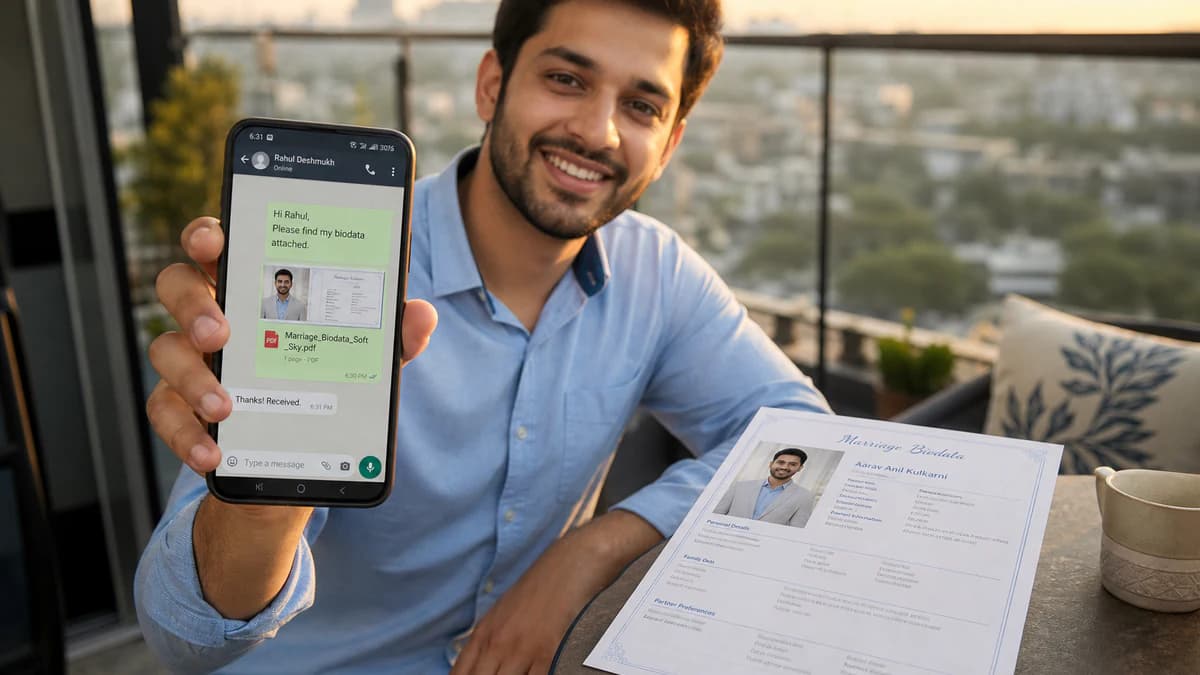
- Share PDF “Share PDF” opens device share options so you can send the PDF on WhatsApp to parents or shortlisted families.
- Download PDF “Download PDF” regenerates your marriage biodata PDF from secure storage whenever you need a clean copy.
Use “Edit biodata” with your secure link for later fixes, or “Go to Home” to return to the site.
Final tip
Treat your biodata like a family introduction card: clear, respectful, easy to verify. Before “Get Premium PDF”, review names and contacts with someone you trust. Then “Download PDF” an offline copy and share confidently. For a full field checklist see what to include; for looks, browse templates.
Need the checklist? What to include in a marriage biodata Prefer designs? Browse marriage biodata templates When you are ready, create free on BiodataBliss.
FAQs
How do I create biodata for marriage online free?
Open BiodataBliss, use Create Biodata, fill Basics → Family → Contact → Photo, preview templates, then download. You can start free and preview before paying for a premium PDF.
How long does marriage biodata in minutes really take?
Most people finish a first draft in a few minutes if details are ready. Family review may add another short pass for spellings and photo.
Is PDF better than Word for WhatsApp?
Yes. A one-page marriage biodata PDF keeps layout intact on phones; Word files often break when forwarded.
Can I edit after download?
Yes. Use the edit link from the success flow when available, update fields, and download again.
Ready to create free marriage biodata online? Open the form and finish in minutes on BiodataBliss.
Create Biodata